Team members
A big door needs more than one pair of hands. Team members are the people you let into your events: someone scanning guests in at the entrance, a colleague building the list with you, or a venue manager who only needs the door on the night.
Everything is set up in one place, Team in the left menu, on the page titled
Manage your team. The roles you give out apply everywhere, in the web app and in the
iOS and Android check-in apps.
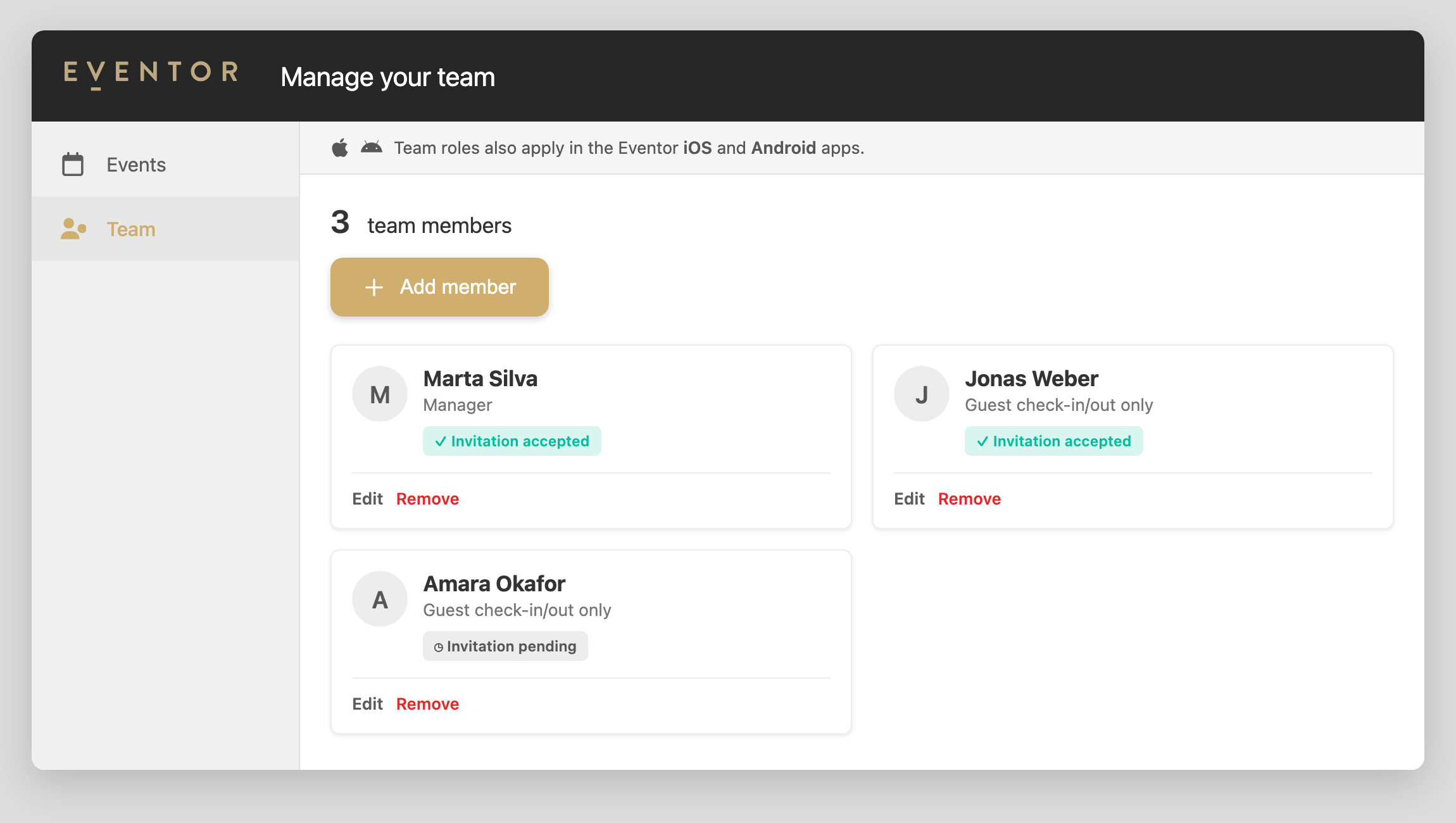
Pro tip. Ask everyone to put a photo on their account. On their card you then see the
face instead of a grey circle with a letter, which makes a team of fifteen far easier to
read at a glance, and it helps at the door too: you can tell who is who before you hand
over the iPad. They do it under Profile, reached from their own avatar in
the top right corner, on the web or in the iOS and Android apps. Anyone who signs in
with Google or Facebook gets their picture automatically.
Adding someone to your team
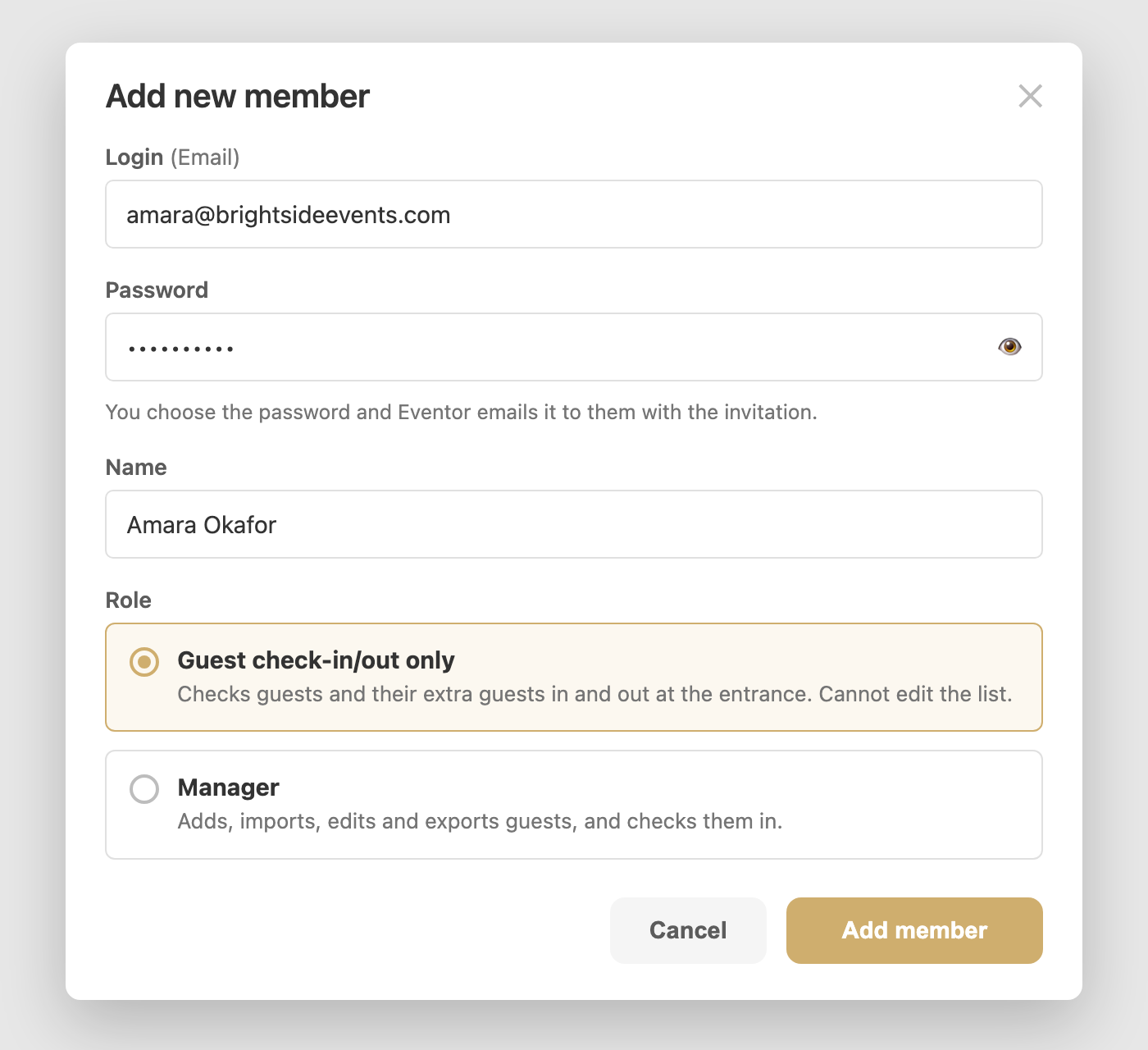
Open Team in the menu and press Add member. You need three things:
- Login (Email) — the address they will sign in with. If they already have an Eventor account with that address, it is simply added to your team and they keep their own password.
- Name — how they appear in your team list.
- Role — what they are allowed to do, see below.
You do not choose a password. For someone new, Eventor creates a single-use password, emails it to them with the invitation, and shows it to you once in a box after you press Add — so you can pass it on yourself if you would rather not wait for the email. Copy it then if you want it: it is not stored anywhere afterwards, not even for us.
If you miss it or they lose it, open the ⋮ menu on their card and choose Reset password. That creates a new one and shows it once, the same way. They can also set their own at any time with Forgot password? on the sign-in screen, and change it later under Profile.
The two roles
Guest check-in/out only is for the door. They can check guests and their extra guests in and out, and that is all. They cannot add, edit, import, export or delete anyone. This is the right choice for hostesses, security and venue staff, and it is the safest, so it is the default.
Manager is for the people running the event with you. They can add, import, edit and export guests as well as check them in. Give this to the colleague who builds the list.
Whatever you choose applies to that person on every event of yours, in the browser and in the mobile apps. You can change it at any time with Edit on their card.
Team members never need their own paid plan. They work inside your events, on your package, so the guest and device limits are yours, not theirs.
What the invitation looks like
As soon as you add someone, Eventor emails them. If the account was created by your invitation, that email carries their sign-in details, their role and what it allows, and a button that takes them straight into the app.
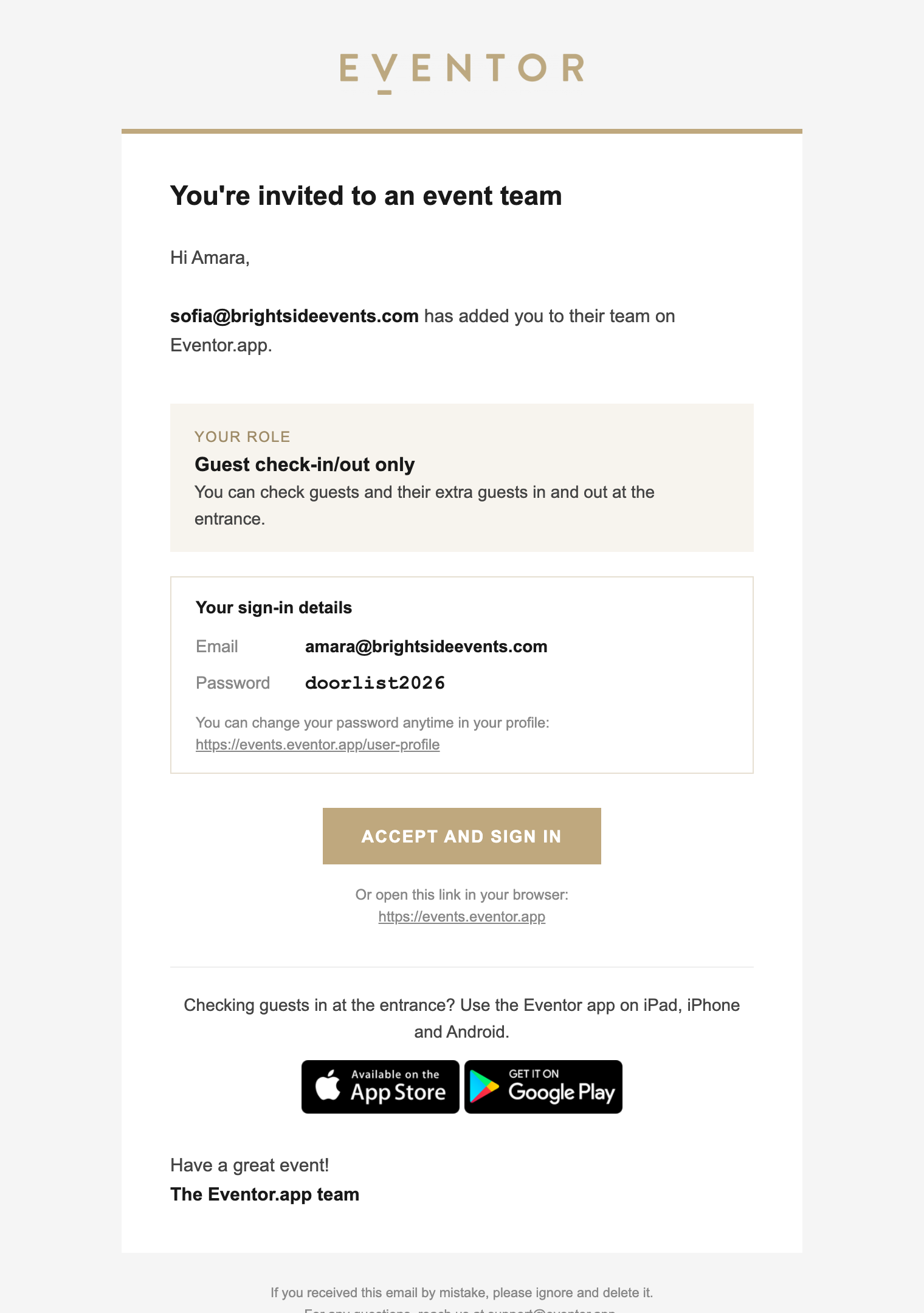
Their card in your team list shows Invitation pending until they sign in for the first time, then it turns into Invitation accepted.
Cannot find the invitation?
Ask them to check the Spam or Junk folder before anything else. Invitations are sent automatically, and mail filters put them there more often than you would expect, especially on company addresses.
What to look for:
- The sender is Nicole Benisch <[email protected]>.
- The subject is "<your email address> invited you to their team on Eventor.app".
- In Gmail, look in the Promotions and Updates tabs as well as Spam.
- In Outlook, check Junk Email and the Other inbox.
If they find it in Spam, ask them to mark it as not spam and add [email protected]
to their contacts, so the reminders and event emails that follow land properly.
If it is genuinely nowhere, check the address on their card for a typo first. They do not need the email to get in: open the ⋮ menu on their card, choose Reset password, and read them the password it shows you. With that and the address you typed they can sign in at events.eventor.app straight away.
Which events they can see
Adding someone gives them your live events, and every event you create afterwards is shared with your whole team automatically. You do not have to repeat the invitation for each new event.
Events that were already finished and archived when you added the person stay as they were, so a new member does not gain access to the history of events they had nothing to do with.
Taking access away
Press Remove on their card. They lose access to all of your events immediately, the archived ones included, and they disappear from every event's team. Their own Eventor login still exists, it simply no longer opens anything of yours.
This is what you want when someone leaves, and it is worth doing the same day. If they were only helping for one night, remove them the morning after.
Removing a team member does not delete any guests, check-ins or events. It only takes away that person's access.
A few practical habits
- One login per person, never a shared one. Check-ins are recorded with the device and the person who made them, which is what lets you see who checked whom in.
- Give the door role by default. Upgrade someone to Manager only when they actually need to change the list.
- Count your devices, not your people. Your package sets how many check-in devices an event allows, so a ten-person team on a three-device package still means three devices scanning at once. Upgrading events lifts both limits.
- Add people before the day. Invitations arrive by email, and a colleague setting up a password at the entrance while a queue builds is nobody's idea of a good evening.